
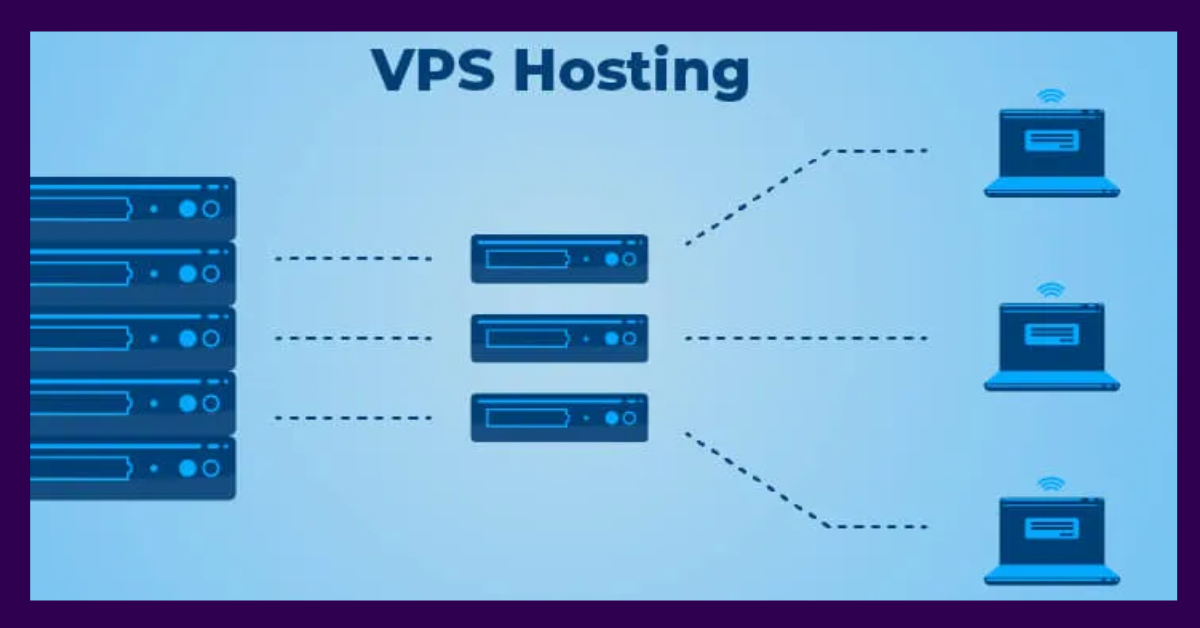
Access Your VPS Via Secure Shell (SSH)
Secure Shell (SSH) is the gold standard for remote access to your VPS. If you’re new to managing servers, don’t worry—this guide will walk you through how to SSH into your Hordanso VPS using SSH key pairs.
Why it matters: Using SSH key-based login is safer, faster, and more scalable than passwords. Hordanso VPS instances come pre-configured with enhanced security settings to protect your server from the moment it’s provisioned.
What Is an SSH Key Pair?
An SSH key pair consists of two files:
- Private Key – Stored securely on your local computer (never share this!)
- Public Key – Uploaded to your VPS
When you connect via SSH, your VPS checks if your private key matches the public key stored on it. If it does, you’re in—no password needed.
Getting Started: Your Hordanso VPS Credentials
When you purchase a VPS from Hordanso, you’ll receive two separate emails:
Email 1: VPS Details
Contains:
- Your VPS public IP address
- Server specifications
- Region and configuration details
- Connection instructions
Email 2: SSH Keys
Contains two key files as attachments:
yourname_key.pem(Private Key) – Keep this secure!yourname_key.pub(Public Key) – Already installed on your VPS
Important: Delete the email with your keys immediately after downloading and saving them securely.
Step-by-Step: Connect to Your Hordanso VPS
Step 1: Prepare Your SSH Key
After downloading your private key from the email, you need to set the correct permissions.
On Linux/macOS:
# Save the key to your .ssh directory
mv ~/Downloads/yourname_key.pem ~/.ssh/

# Set proper permissions (required for security)
chmod 600 ~/.ssh/yourname_key.pem
On Windows:
- Save the key to a secure location (e.g.,
C:\Users\YourName\.ssh\) - Right-click the file → Properties → Security → Advanced
- Remove all users except yourself and set to “Read” only
Step 2: Connect to Your VPS
Hordanso VPS instances uses a custom port xxxxx (please get from your email) for enhanced security (not the default port 22).
Basic connection command:
ssh -i ~/.ssh/yourname_key.pem -p xxxxx admin@your_vps_ip
Real example:
ssh -i ~/.ssh/john_key.pem -p xxxxx admin@198.51.100.42
Breaking down the command:
-i ~/.ssh/yourname_key.pem– Specifies your private key file-p xxxxx– Connects to port xxxxx (Hordanso’s custom SSH port)admin– Default username for Hordanso VPSyour_vps_ip– Your server’s public IP address (from Email 1)
Step 3: First Connection
When connecting for the first time, you’ll see a message like this:
The authenticity of host '[198.51.100.42]:xxxxx' can't be established.
ED25519 key fingerprint is SHA256:xxx...
Are you sure you want to continue connecting (yes/no/[fingerprint])?
Type yes and press Enter. This adds your VPS to your list of known hosts.
Success! You should see the Hordanso welcome banner:
 _   _                  _
 | | | |  ___   _ __  __| |  __ _  _ __   ___   ___
 | |_| | / _ \ | '__|/ _` | / _` || '_ \ / __| / _ \
 |  _  || (_) || |  | (_| || (_| || | | |\__ \| (_) |
 |_| |_| \___/ |_|   \__,_| \__,_||_| |_||___/ \___/

Welcome to Hordanso Server 🚀
════════════════════════════════════════════════════════════
This server is hosted by Hordanso.net
📧 Support: support@clients.hordanso.com
🌐 Website: https://hordanso-dev.10web.me
════════════════════════════════════════════════════════════

admin@hordanso-john-vps:~$
Platform-Specific Instructions
For Windows Users
Option 1: Using PowerShell or Command Prompt (Windows 10/11)
Windows 10 and 11 come with OpenSSH built-in:
ssh -i C:\Users\YourName\.ssh\yourname_key.pem -p xxxxx admin@your_vps_ip
Option 2: Using PuTTY
- Convert your key to PuTTY format:
- Download and open PuTTYgen
- Click “Load” and select your
.pemfile - Click “Save private key” and save as
.ppk
- Connect with PuTTY:
- Host Name: your_vps_ip
- Port: xxxxx
- Connection type: SSH
- Navigate to: Connection → SSH → Auth → Credentials
- Private key file: Browse to your
.ppkfile - Click “Open”
- Save your session for future use:
- Return to “Session” category
- Enter a name under “Saved Sessions”
- Click “Save”
For macOS Users
macOS includes SSH by default. Simply use Terminal:
ssh -i ~/.ssh/yourname_key.pem -p xxxxx admin@your_vps_ip
Optional: Create an SSH config file for easier access:
nano ~/.ssh/config
Add this configuration:
Host hordanso-vps
    HostName your_vps_ip
    User admin
    Port xxxxx
    IdentityFile ~/.ssh/yourname_key.pem
Now you can connect with just:
ssh hordanso-vps
For Linux Users
Linux distributions include OpenSSH by default:
ssh -i ~/.ssh/yourname_key.pem -p xxxxx admin@your_vps_ip
You can also use the SSH config file method described in the macOS section above.
Security Features (Pre-Configured)
Your Hordanso VPS comes with security hardening already applied:
✅ Custom SSH Port (xxxxx) – Reduces automated bot attacks
✅ Root Login Disabled – Forces use of the admin user
✅ Password Authentication Disabled – Only SSH keys accepted
✅ UFW Firewall Enabled – Only SSH port open by default
These settings are configured in /etc/ssh/sshd_config.d/custom-port.conf and are ready from day one.
Best Practices for SSH Security
1. Never Share Your Private Key
Your private key is like your password—never email it, upload it, or share it with anyone.
2. Use a Passphrase (Optional but Recommended)
Add an extra layer of security by protecting your private key with a passphrase:
ssh-keygen -p -f ~/.ssh/yourname_key.pem
3. Backup Your Keys Securely
Store a backup of your private key in a secure password manager like:
- 1Password
- Bitwarden
- LastPass
4. Always Use sudo Instead of Root
Never try to log in as root. Always use your admin user and elevate privileges when needed:
sudo apt update && sudo apt upgrade
5. Keep Your System Updated
Regularly update your VPS:
sudo apt update && sudo apt upgrade -y
Common Issues and Solutions
Problem: “Permission denied (publickey)”
Causes and Solutions:
- Incorrect key permissions
chmod 600 ~/.ssh/yourname_key.pem - Wrong username
- Use
admin, notrootor other usernames
ssh -i ~/.ssh/yourname_key.pem -p xxxxx admin@your_vps_ip - Use
- Forgot to specify the key file
- Always include
-iflag with your key path
- Always include
- Wrong port
- Use
-pxxxxx, not the default port 22
- Use
Problem: “Connection refused”
Causes and Solutions:
- Wrong IP address
- Double-check the IP from your VPS details email
- Using wrong port
- Remember: Hordanso uses
ssh -i ~/.ssh/yourname_key.pem -p xxxxx admin@your_vps_ip
- Firewall blocking connection
- Check your local firewall settings
- Verify UFW allows port xxxxx:
sudo ufw status
Problem: “Bad permissions” or “Unprotected private key file”
Solution:
Your private key file has incorrect permissions. Fix it:
Linux/macOS:
chmod 600 ~/.ssh/yourname_key.pem
Windows (PowerShell as Administrator):
icacls C:\Users\YourName\.ssh\yourname_key.pem /inheritance:r
icacls C:\Users\YourName\.ssh\yourname_key.pem /grant:r "%USERNAME%:R"
Problem: “Host key verification failed”
Cause: The server’s fingerprint changed (this can happen if the VPS was reinstalled)
Solution:
Remove the old host key and try again:
Linux/macOS:
ssh-keygen -R [your_vps_ip]:xxxxx
Windows:
ssh-keygen -R [your_vps_ip]:xxxxx
Then reconnect and accept the new fingerprint.
Advanced: Simplify Your Connection
Create an SSH Alias (Linux/macOS)
Edit your SSH config:
nano ~/.ssh/config
Add:
Host my-vps
    HostName your_vps_ip
    User admin
    Port xxxxx
    IdentityFile ~/.ssh/yourname_key.pem
Now connect with just:
ssh my-vps
What’s Next?
Now that you’re connected to your VPS, here are some recommended next steps:
1. Update Your System
sudo apt update && sudo apt upgrade -y
2. Install Essential Tools
sudo apt install -y git curl wget htop nano
3. Set Up a Web Server
- Install NGINX or Apache
- Configure PHP and MySQL
- Set up WordPress or your preferred CMS
4. Configure Your Firewall
# Allow HTTP and HTTPS
sudo ufw allow 80/tcp
sudo ufw allow 443/tcp

# Check status
sudo ufw status
5. Install SSL Certificate
Use Let’s Encrypt for free SSL:
sudo apt install certbot python3-certbot-nginx
Helpful Resources
📚 More Guides Coming Soon:
- Setting up a LAMP/LEMP stack
- Installing WordPress on your VPS
- Auto-renewing SSL with Let’s Encrypt
- Configuring automated backups
- Optimizing VPS performance
🔗 Quick Links:
Need Help?
Stuck or have questions? Our support team is here to help!
📧 Email: support@clients.hordanso.com
📞 Phone: +(234) 806 044 0510 | +(234) 707 542 1523
🌐 Website: hordanso-dev.10web.me
💬 Live Chat: Available on our website
Support Hours: Monday – Friday, 9 AM – 6 PM WAT
Quick Reference Card
Connection Command:
ssh -i ~/.ssh/yourname_key.pem -p xxxxx admin@your_vps_ip
Key Details:
- Port: xxxxx (not 22)
- Username: admin
- Authentication: SSH key only (no passwords)
- Key Permissions: 600 (read/write for owner only)
Common Commands:
# Update system
sudo apt update && sudo apt upgrade -y

# Check disk space
df -h

# Check memory usage
free -h

# View running processes
htop

# Check system logs
sudo journalctl -xe
Happy hosting! 🚀
Published by Hordanso LTD – Your trusted partner for web hosting, domains, and VPS solutions.

